Meta pixel on Shopify
Meta pixel setup on Shopify: install it and verify a test purchase
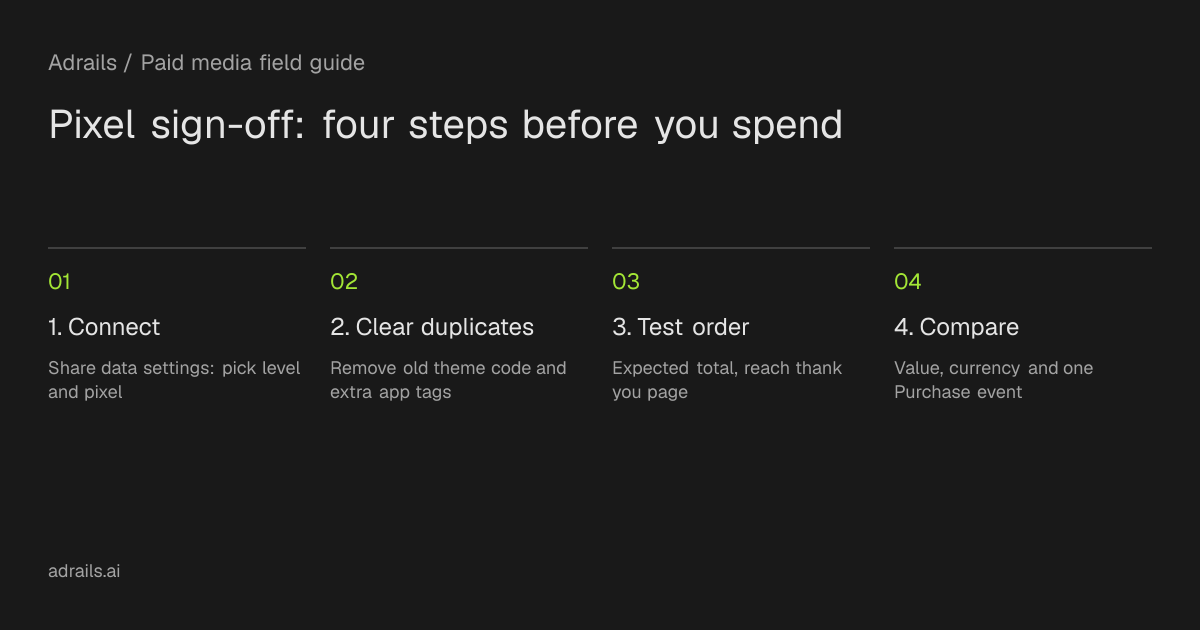
Install the pixel through the Facebook and Instagram by Meta sales channel, choose Standard, Enhanced or Maximum data sharing, remove old theme code, then place one test order and compare its expected total with the recorded value and currency. An illustrative worksheet shows how to sign off.
By Adrails · AI-assisted guide · Published
Working reference
Pixel sign-off worksheet: Harbor and Pine (invented store)
| Check | Before the test | After the test | Result |
|---|---|---|---|
| Setup route | Shopify Facebook and Instagram channel, Share data settings | Pixel selected and confirmed; pixel ID noted | Pass |
| Old theme code | Look for Meta pixel code in theme.liquid | None found | Pass |
| Agency or app tags | Ask whether another tool adds a pixel | None reported | Pass |
| Data-sharing level | Standard (owner's choice) | Standard shown in settings | Pass |
| Privacy policy | Confirm it describes data sharing | Policy reviewed | Pass |
| Expected order total | 87.48 USD from the calculation above | Order total on thank you page: 87.48 USD | Pass |
| Recorded value and currency | Not yet recorded | 87.48 USD in Events Manager | Pass |
| Purchase events for the order | Expect 1 | 1 recorded | Sign off |
Illustrative example with invented numbers. Replace each entry with your own store's evidence. Arithmetic: 40.00 + 2 x 25.00 = 90.00; less 9.00 = 81.00; plus 6.48 = 87.48.
01
Short answer: connect through the Shopify channel, then test one order
Add the pixel through the Facebook and Instagram by Meta sales channel in Shopify, choose a customer data-sharing level, and confirm nothing else on the store loads a second pixel. Then place one test order and compare the order total you expected with the value and currency the pixel recorded. If they match and only one Purchase event appears, the pixel can be signed off for spending.
This guide separates two kinds of content. Sections labelled as sourced describe behavior stated in Meta and Shopify help pages read on 2026-10-22. Sections labelled as a suggested manual procedure, and the worked example, are original advice and invented numbers.
02
Sourced: how the setup routes work
Meta describes pixel setup as two steps: create the pixel in Events Manager with base code on your site, then set up events such as purchases. You can use a partner integration or add code manually. Meta also recommends using the Conversions API alongside the pixel if you share events.
Shopify's help says that when you set up Facebook and Instagram by Meta you can add a pixel to track behavior on your Online Store. You can create a new pixel from that channel or in Facebook Ads Manager. In the channel, go to Sales channels, then Facebook & Instagram, then Settings, then Share data settings. Enable the data-sharing toggle, choose Standard, Enhanced or Maximum, select your pixel and click Confirm.
- Shopify says you must activate data sharing before you can add a pixel.
- If you previously pasted pixel code into your theme, Shopify says to remove it before connecting a pixel through the channel, because two pixels can cause duplicate or incorrect reports.
- Shopify also warns to check that an agency or ads app will not add duplicate or incorrect data.
- Shopify notes that new pixels need customer activity before data shows in Ads Manager.
03
Sourced: what each data-sharing level changes
Standard uses the Meta pixel to collect browsing behavior, and Shopify notes a browser-based ad blocker can stop the pixel from sharing data. Enhanced adds the Conversions API, which sends the purchase event server to server, and Shopify says it shares name, location, email address and phone number to match users. Maximum uses the Conversions API and pixel and is updated with Meta's latest advertising technology, with the same personal information shared.
Shopify frames data sharing as a choice and says you must keep your privacy policy current. Which level suits you is a business and legal decision that these sources do not make for you.
04
Sourced: what the Purchase event measures
Shopify lists the automatic events as PageView, ViewContent, Search, AddToCart, InitiateCheckout, AddPaymentInfo and Purchase. Purchase fires when a visitor completes a purchase and views the thank you page. Events that track order value use the order's total price, described as the sum of all item prices in the checkout, including duties, taxes and discounts.
So the expected value for your test is the final order total, not the product subtotal. The sources do not say how shipping is treated, so avoid shipping in your first test or record the result you see rather than assuming.
05
Suggested manual procedure: the test purchase
This procedure is original advice, not documented product behavior. Do it after the pixel is connected and old theme code is removed. Use a browser with ad blockers off, because with Standard sharing a blocker can stop the pixel. Choose a cart with a discount and a quantity above one so errors in value show up.
Write the expected total before checkout. Complete the order through to the thank you page, since Purchase fires there. Then open Events Manager and record the Purchase event's value, currency and how many events appeared for that one order. The supplied sources do not describe Events Manager screens, so follow Meta's own guidance on checking that a pixel works. Cancel or refund the test order under your own process.
- Expected equals recorded value, and currency matches the store currency: pass.
- Two Purchase events for one order: look for a second pixel, an agency tag or an app before spending.
- Recorded value differs: note the gap and investigate before spending. A gap equal to tax is a lead to check, not a diagnosis.
06
Worked example with invented numbers
Illustrative only, not customer data. A made-up store, Harbor and Pine, sells in USD. The test cart holds one item at 40.00 and two items at 25.00 each, so items total 40.00 + 50.00 = 90.00. A 10% discount takes off 9.00, leaving 81.00. Tax at 8% of 81.00 is 6.48, so the expected order total is 87.48 USD.
The owner used the Shopify channel route, chose Standard and recorded 87.48 USD with one Purchase event, so the check passes. Had Events Manager shown 81.00, the 6.48 difference would match the tax amount, which would be a reason to investigate, not proof of cause.
07
What this evidence cannot establish
One matching order shows the pixel fired correctly once, on your device, with blockers off. It does not show that real customers with ad blockers are tracked, that attribution is right, or that ads are profitable. It also does not cover the Conversions API unless you chose Enhanced or Maximum. Meta's help also covers deduplication, which these sources do not detail.
The audit checklist makes the same point: platform and store revenue answer different questions, so a gap alone does not prove broken tracking. Repeat the test after theme, app or checkout changes.
Read more
- Meta Ads account audit checklist: 20 checks and next actionsSource and further reading for this guide.
Common questions
Which data-sharing level should I pick on Shopify?
The sources describe the levels but do not recommend one. Standard uses the pixel only and can be blocked by browser ad blockers. Enhanced and Maximum add the Conversions API and share name, location, email address and phone number. Decide based on your privacy policy and obligations.
Do I need to remove pixel code I added to my theme earlier?
Yes. Shopify says to remove theme code before connecting a pixel through the Facebook and Instagram channel, because more than one pixel can cause duplicate or incorrect data in reports.
What should the recorded purchase value equal?
Shopify says order value events use the order's total price, including duties, taxes and discounts. Compare the recorded value with your final order total and check the currency. Shipping treatment is not stated in the sources, so note what you observe.
Why might my test not appear in Ads Manager right away?
Shopify says a newly added pixel needs customer activity before data appears in Facebook Ads Manager. Exact delays are not given in the sources, so recheck later and follow Meta's troubleshooting guidance if nothing appears.